
You don’t need After Effects, a monthly design subscription, or years of keyframing to ship clean animated videos anymore. You need a free Claude account, two free tools, and one focused afternoon. 🚀
This guide shows you exactly how to make motion graphics with Claude for $0. Claude writes the animation as code, and a free, open-source renderer called HyperFrames turns that code into a real MP4 you can post on Instagram Reels, TikTok, YouTube Shorts, or a client’s website. No watermark, no free trial that expires.
What Are Motion Graphics with Claude?

Motion graphics with Claude means using Claude to write the code for an animated video, then rendering that code into a video file with a separate tool. Claude handles the creative and technical writing, and the renderer handles the pixels.
Quick definition: Motion graphics with Claude is a workflow where Claude writes an animation as HTML, CSS, and JavaScript (or React or Python), and a rendering tool such as HyperFrames captures it frame by frame into an MP4. You get animated text, UI mockups, charts, and transitions without manual keyframing.
This is different from AI video generators that “dream up” footage. Claude isn’t painting pixels here. It’s writing precise instructions, which is why the results come out crisp, editable, and on-brand: change one line and the whole video updates.
That makes it lowkey perfect for the stuff most creators actually need: kinetic typography, product and app promos, explainer clips, data visualizations, lower thirds, and tutorial reels.
Can You Really Make Motion Graphics with Claude for Free?
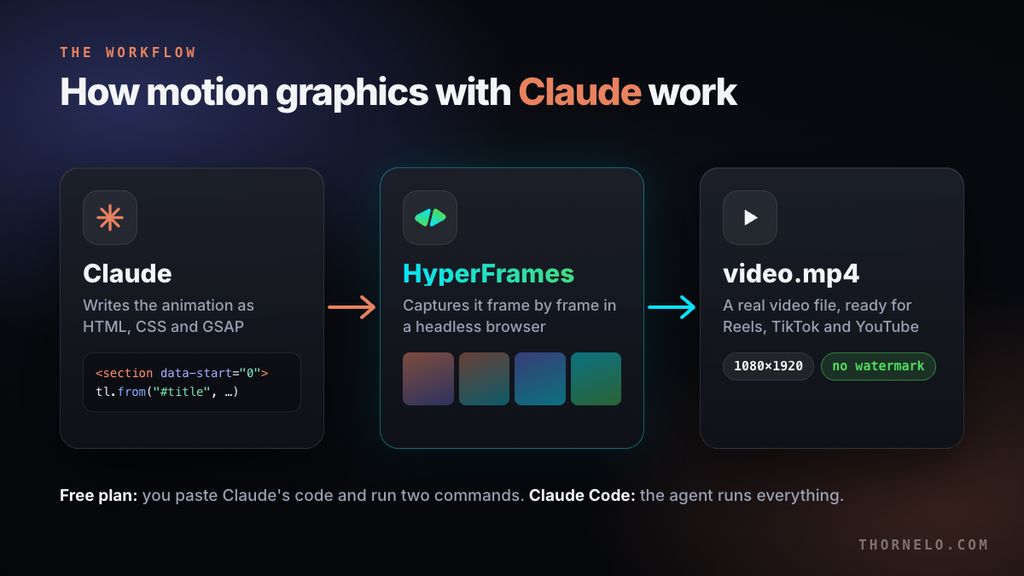
Yes. The free Claude plan includes Artifacts, file creation, and code execution, which is everything you need to get working animation code. The paid upgrade only adds automation and higher usage limits.
Here’s the honest split. On the free plan, Claude writes the composition and you copy it into a project folder on your computer. You then run one command to preview it and one to render it.
What the free plan does not include is Claude Code, the terminal-based agent that can create files, run commands, and fix errors on its own. You can check the current plan details on Claude’s pricing page. So making motion graphics with Claude on the free tier is a copy-paste workflow, not a hands-off one. Fr, that’s still a massive upgrade over manual keyframing.
The free plan also has usage limits. Long back-and-forth sessions can hit the cap, so the smart move is writing a tight brief up front (more on that below).
What You Need Before You Start (All Free)
To make motion graphics with Claude for free, you need four things: a free Claude account, Node.js 22 or newer, FFmpeg, and a code editor. Any recent Windows, Mac, or Linux laptop can handle it.
What is HyperFrames? HyperFrames is a free, open-source tool that renders HTML into video. You write a web page whose elements carry timing attributes, animate it with a seekable library like GSAP, and HyperFrames captures it frame by frame into an MP4. It’s released under the Apache 2.0 license, with no per-render fees.
Here’s the full kit:
- Claude (free plan): writes and fixes your animation code.
- Node.js 22+: runs the HyperFrames command-line tool.
- FFmpeg: encodes the captured frames into video.
- A code editor: VS Code or any plain-text editor works.
You can find the source code and requirements on the HyperFrames GitHub repository. There are no commercial-use thresholds, so client work is fine.
How to Make Motion Graphics with Claude for Free: 6 Steps
The process is simple: install the tools, create a project, write a brief, let Claude write the code, preview it, and render. Here’s each step in order.
Step 1: Install Node.js and FFmpeg
Install Node.js (version 22 or newer) from its official website, then install FFmpeg with your system’s package manager or an official build. On a Mac with Homebrew, that’s brew install node ffmpeg.
Check both worked by running node -v and ffmpeg -version in your terminal. If either command isn’t found, restart the terminal before you troubleshoot anything else.
Step 2: Create a HyperFrames Project
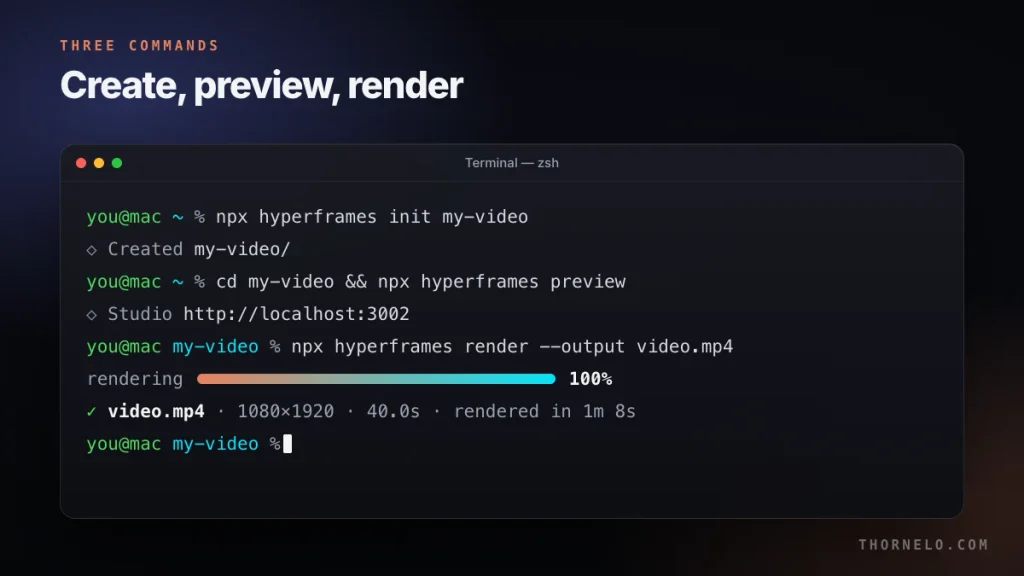
Open a terminal in the folder where you keep your projects and run:
npx hyperframes init my-video
cd my-video
npx hyperframes preview
This creates a starter project with an index.html file and opens a live preview in your browser. The HyperFrames quickstart covers the same commands if you get stuck.
Step 3: Write a Motion Brief Claude Can Follow
A good brief is the difference between “meh” and “wait, who edited this?” Before you open Claude, write down five things:
- Length and format: for example, 20 seconds, 1080×1920 (vertical).
- Scenes with timestamps: 0–3s hook, 3–8s problem, 8–15s solution, 15–20s call to action.
- On-screen text: the exact words, kept short.
- Look: background color, one accent color, and a font.
- Motion vibe: snappy and punchy, or calm and premium.
Timestamps matter most. When you plan motion graphics with Claude, vague prompts like “make it cinematic” get generic results, while “the title slides up at 0.5s and the logo pops in at 2.0s” gets you exactly what you pictured.
Step 4: Ask Claude to Write the Composition
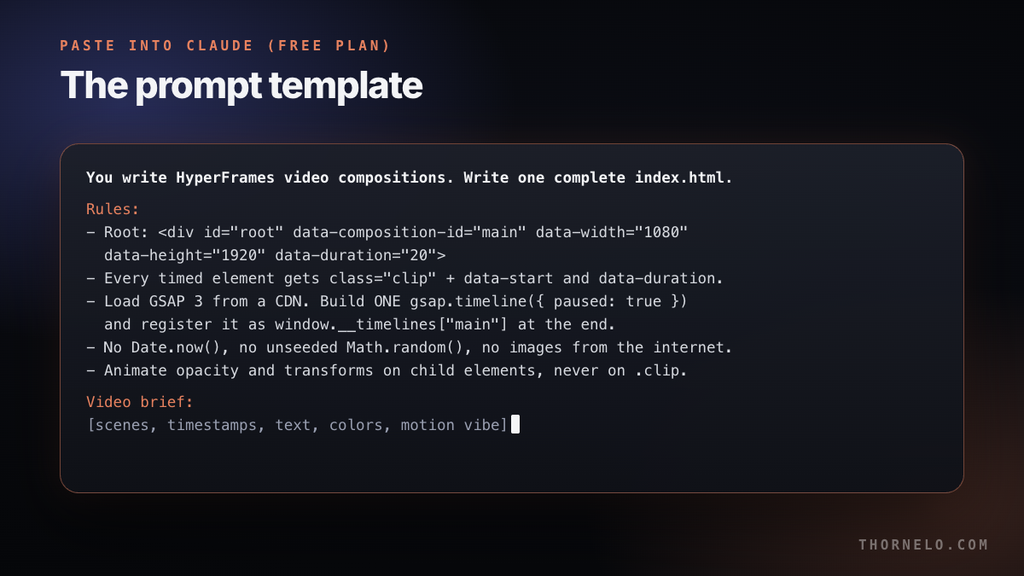
This prompt template does the heavy lifting for motion graphics with Claude. Paste it into a new chat. It bakes in the HyperFrames rules so the code renders correctly on the first try:
You write HyperFrames video compositions. Write one complete index.html.

Rules:
- Root: <div id="root" data-composition-id="main" data-width="1080"
  data-height="1920" data-duration="20">
- Every timed element gets class="clip" plus data-start and data-duration (seconds).
- Load GSAP 3 from a CDN. Build ONE gsap.timeline({ paused: true }) and
  register it as window.__timelines["main"] at the end of the script.
- No Date.now(), no unseeded Math.random(), no images from the internet.
- Animate opacity and transforms on child elements, never on the .clip itself.

Copy Claude's code into index.html and save. Your browser preview reloads automatically. 🔥
Step 5: Preview, Check, and Polish
Watch the preview, then run npx hyperframes lint and npx hyperframes check in the terminal. Lint catches structural mistakes, and check opens the video in a headless browser to flag runtime errors, overlapping text, and low contrast.
When something looks off, describe the exact moment: “At 4.2s the subtitle overlaps the card. Move it up 80px and fade it in 0.2s later.” Ask Claude for the changed lines only, not the whole file. That saves your free messages and keeps the edits easy to review.
Step 6: Render the MP4 and Add Sound
When you’re happy, render the final file:
npx hyperframes render --output video.mp4
Rendering happens on your machine, so it doesn’t cost credits. As a rough reference, a 40-second 1080×1920 composition rendered in about 70 seconds on an Apple M1 Pro laptop while testing for this guide. Heavy blur effects and longer videos take more time.
For audio, add an <audio> element with an id, data-start, and data-duration inside your composition, or mix it afterwards with FFmpeg:
ffmpeg -i video.mp4 -i music.wav -c:v copy -c:a aac -shortest final.mp4
Only use music, sound effects, and fonts you have the rights to use. That matters even more for client work.
The Pro Tip Most Guides Miss: Put Every Timing in One Place
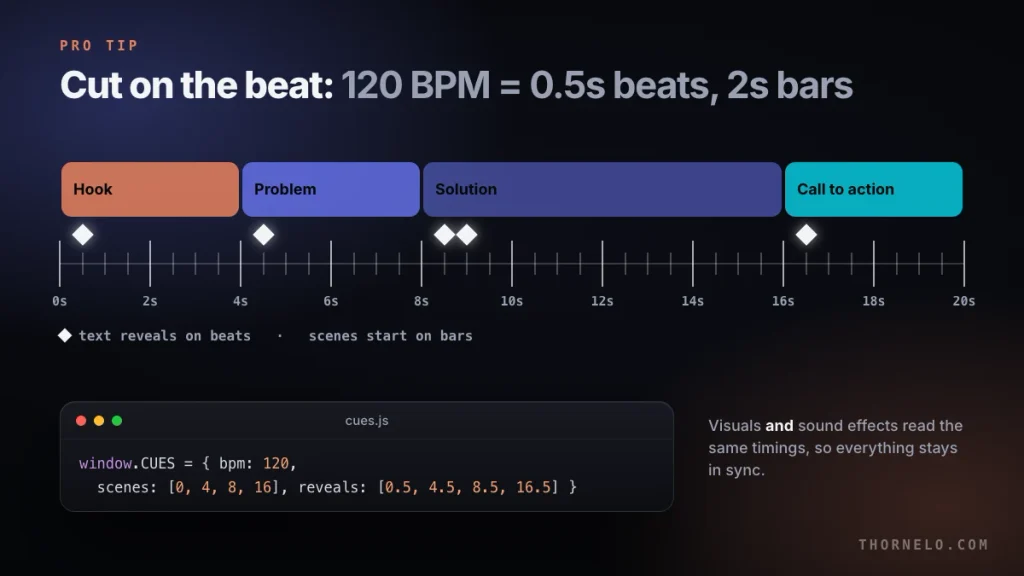
Keep all your timings in one shared file and build the visuals and sounds from it. This one habit makes motion graphics with Claude feel professionally edited instead of “AI-made.”
Ask Claude to write a small cues.js file first, listing every key moment: scene changes, text reveals, clicks, and impacts. The animation script reads those numbers, and if you add sound effects, you place them using the same list. Change one timing and everything stays in sync.
Then go one level further and think in beats. At 120 BPM, one beat is 0.5 seconds and one bar is 2 seconds. Tell Claude to start every scene on a bar and every text reveal on a beat, and pick music at the same tempo. Cuts that land on the music read as “edited,” even when the motion itself is simple.
Other Free Ways to Animate with Claude
HyperFrames isn’t the only free route to motion graphics with Claude. Claude can also write code for other free animation tools, and each one fits a different kind of creator.
| Option | What Claude writes | Best for | Cost and license | The catch |
|---|---|---|---|---|
| HyperFrames | HTML, CSS, GSAP | Reels, explainers, product promos | Free, Apache 2.0 | Needs Node.js 22+ and FFmpeg |
| Remotion | React components | Developers who already know React | Free for individuals, nonprofits, and companies with up to 3 employees | Larger companies need a paid company license |
| Manim | Python scenes | Math and science explainers | Free, MIT license | Steeper setup, distinctly “math” look |
| Claude artifact + OBS | One HTML file | Quick tests and drafts | Free | Screen recording, not frame-exact |
Manim Community Edition is the go-to for equations and graphs. If you just want to test an idea, you can ask Claude for an HTML animation artifact, play it full screen, and capture it with OBS Studio. Expect lower polish, since screen recording can drop frames.
Which One Should You Pick?
For most people starting with motion graphics with Claude, HyperFrames is the pick. Choose it if you make social videos, promos, or tutorials and want the fastest route from prompt to MP4. It’s plain HTML, so Claude writes it fluently, and there’s no license threshold to worry about.
Pick Remotion if you already build React apps and want your videos to live inside a JavaScript codebase. Check its license first if you work at a company with more than three people.
Pick Manim if your content is math, physics, or data-heavy teaching. And use the artifact-plus-OBS route only for drafts or when you can’t install anything on your computer.
Should You Upgrade to Claude Code?
Upgrade only if you’ll make videos every week. Claude Code turns the copy-paste loop into a hands-off one: it writes the files, runs the checks, reads the errors, and renders the video for you.
Claude Code is included with every paid plan, starting with Pro at $20 per month, or $17 per month billed annually. HyperFrames installs into it as a plugin with two commands:
claude plugin marketplace add heygen-com/hyperframes
claude plugin install hyperframes@hyperframes
After that, you can type something like “Using /hyperframes, make a 30-second reel about my app launch” and let the agent plan, build, lint, and render. For occasional videos, the free workflow for motion graphics with Claude gets you the same output with a bit more manual work.
Common Mistakes to Avoid
Most failed attempts at motion graphics with Claude come from a handful of avoidable mistakes. Here are the ones that show up again and again:
- No timestamps in the brief. Claude fills the gaps with generic motion. Give it exact seconds.
- Random or clock-based animation.
Math.random()andDate.now()make every render different. Use fixed values or a seeded generator. - Ignoring safe zones. On Reels and TikTok, the app’s buttons and caption cover the bottom and right edges. Keep key text near the center.
- Tiny text. Phones are small. Big, short headlines beat long sentences every time.
- Re-pasting the whole file for every fix. You’ll burn through free-plan limits. Ask for targeted changes.
- Skipping the check step.
npx hyperframes checkcatches overlapping text and contrast problems before you waste a render.
Reality Check: What Claude Can’t Do (Yet)
Claude is a strong motion graphics coder, not a one-click video studio. Knowing the limits upfront saves a lot of frustration.
Claude can’t hand you an MP4 straight from the chat. It also can’t watch your render, so you need to describe problems with timestamps or paste a screenshot. It won’t produce photorealistic footage either, since this workflow is about type, shapes, interfaces, and data.
Be careful with hype, too. Paid “AI motion graphics” courses and prompt packs that promise easy income are a red flag. Everything in this guide is free, documented, and open source. Your results still depend on your taste and your brief, no cap.
Can You Make Money with Motion Graphics with Claude?
You can sell short motion graphics as a service, but income depends on your portfolio, your niche, and how consistently you find clients. Nothing here guarantees earnings.
The usual offers are animated logo stings, product promo reels, explainer clips, and text-based social videos for small businesses and creators. As illustrative math only: 4 short promo clips a month × $75 each = $300 a month. That’s a realistic side-hustle shape, not a promise. 💸
If you’re a student, start by making your first $500 a month as a student and then set up a Fiverr profile as a CS student with three sample reels. Your rendered videos also make strong proof of skill when you build a developer portfolio with no experience. For the bigger picture, see these 5 ways to get rich in the AI era.
Frequently Asked Questions
Can Claude make videos for free?
Yes. You can make motion graphics with Claude on its free plan, because Claude writes the full code for the video. It doesn’t export video files by itself, though. You render the code into an MP4 with a free tool like HyperFrames, which runs on your own computer at no cost.
Do I need Claude Pro or Claude Code to make motion graphics?
No. The free plan is enough if you’re willing to copy Claude’s code into your project and run the preview and render commands yourself. Claude Code, included with paid plans starting at $20 per month, only automates those steps.
Is HyperFrames free for commercial use?
Yes. HyperFrames is open source under the Apache 2.0 license, with no per-render fees or commercial-use thresholds. You still need the rights to any music, fonts, logos, or images you put in your videos.
What computer do I need to render motion graphics with Claude?
Any recent Windows, Mac, or Linux computer that can run Node.js 22 or newer and FFmpeg will work. Faster processors render quicker, and heavy blur effects or long videos take more time on older machines.
Can Claude add music and a voiceover?
Claude can add an audio element to your composition or write the FFmpeg command that mixes audio with your video. Claude doesn’t generate music or voices itself, so you bring your own licensed track or recording.
How long does it take to make motion graphics with Claude?
Expect an afternoon for your first 15–30 second video, including setup and learning the commands. Once your tools and prompt template are ready, a short video can come together in under an hour, depending on how many changes you make.
Is Claude better than After Effects for motion graphics?
They solve different problems. After Effects gives you frame-by-frame manual control, while making motion graphics with Claude gives you fast, code-based videos that are easy to edit, reuse, and turn into templates. Many creators use code for repeatable social content and keep traditional tools for complex one-offs.
Can I make vertical videos for Reels, TikTok, and Shorts?
Yes. Set the composition to 1080×1920 with data-width and data-height, keep key text away from the bottom and right edges, and render as usual. The same project can be re-rendered at 1920×1080 for YouTube.
Make Your First Video Today
Making motion graphics with Claude for free comes down to one simple split: Claude writes the animation as code, and HyperFrames renders it into an MP4 on your own computer. No subscription, no watermark, and no keyframing marathon.
Your next step: install Node.js and FFmpeg today, run npx hyperframes init my-video, and ask Claude for a 10-second animated title card using the prompt template above. Ship that one, then scale up to a full reel. 🤖
Leave a comment